Back to home

School project

ET0015 Server Management · Mini project

Windows Server Domain

A complete office computer network, built from virtual machines by four students. I built the server that stores everyone's files and runs the company websites.

My role
File, storage and web server (DC2)
Team
Four students · Singapore Polytechnic
Timeline
AY2026/27, Semester 1
Platform
Windows Server 2025, Windows 11, VMware
Tools
Active Directory, IIS, FSRM, AD CS, PowerShell
Network diagram of the wss07a.sg domain. On the bridged 10.10.0.0/24 network: DC1 at 10.10.0.10 (DNS, DHCP, AD DS, AD CS, Group Policy), DC2 at 10.10.0.20 (file shares, FSRM, IIS, Work Folders, marked as my part), Client01, the router at 10.10.0.1, and three extra servers for RemoteApp with AD FS (ADFS01, RDS01, WAP01). The router and Client02 run on one laptop, joined by the host-only 10.20.0.0/24 network. wss07a.sg domain 10.10.0.0/24 bridged DC1 10.10.0.10 DNS · DHCP · AD DS AD CS · Group Policy Client01 DHCP · 10.10.0.151+ Windows 11 MY PART DC2 10.10.0.20 File shares · FSRM IIS · Work Folders same laptop Router 10.10.0.1 · 10.20.0.1 RRAS · VPN · DHCP relay host-only 10.20.0.0/24 Client02 DHCP · 10.20.0.100+ Windows 11 · VPN client Extra feature: RemoteApp with AD FS ADFS01 10.10.0.40 RDS01 10.10.0.30 WAP01 10.10.0.50
Our network. Every machine is a virtual machine. DC2 is the one I built.
5shared folders, each only for the right team
3disks working as one, so a broken disk loses nothing
2secure websites with no browser warnings
4/4file-sync tests passed

Overview

For a school module, four of us set up the computer systems for a pretend office, the way an IT team would for a real company: staff accounts, shared folders, websites and secure access from home. Everything ran as virtual machines (computers simulated in software) on our laptops.

My job was DC2, the server that stores everyone's files and runs the company websites. Staff belong to three teams (Manager, Sales and Remote), and what each person can open or save depends on their team.

What I built

01

Files that survive a broken disk

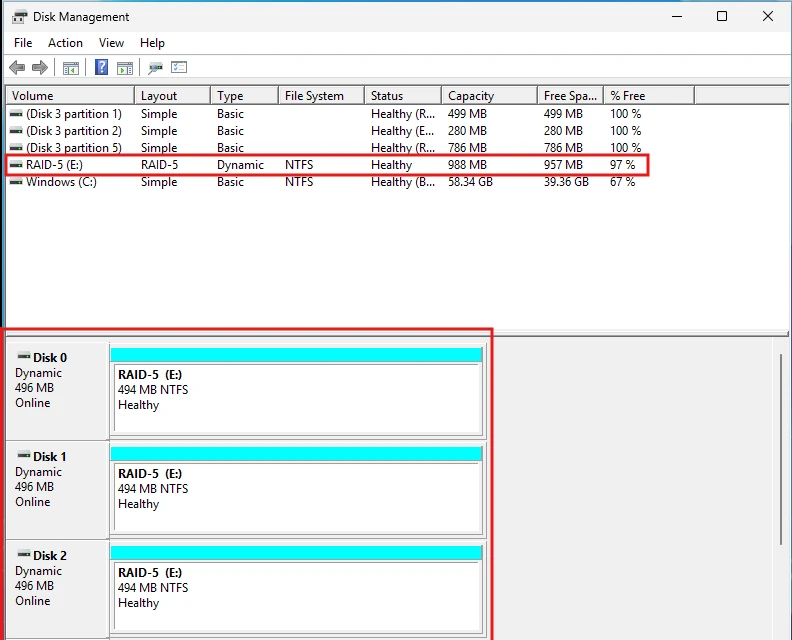
I combined three disks into one drive, with the files spread across all three. If any one disk breaks, nothing is lost. Every shared folder lives on this drive.
RAID-5 · NTFS · Disk Management

Disk Management on DC2: a healthy 988 MB RAID-5 volume E: spread across Disk 0, Disk 1 and Disk 2, each 496 MB and dynamic
Disks 0, 1 and 2 working together as one drive (E:), all healthy.
02

A folder for each team, ready at login

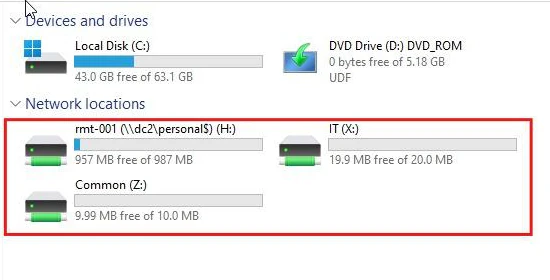
Each team has its own shared folder that other teams can't open: VIP for Managers, Logistics for Sales and IT for the Remote team. There's also Common, which everyone shares.

When staff log in, their folders appear as drives automatically. They don't have to set anything up.
File shares · NTFS permissions · Group Policy

Network locations on a Remote user's PC: their home folder on H:, the IT share on X: with a 20 MB limit, and Common on Z: with a 10 MB limit
A Remote team member just after logging in: their private folder (H:), the team's IT folder (X:) and the shared Common folder (Z:).
The folders, and who can do what
FolderWho it's forShows up asWho can open itWho can save to itWhat can be savedSize limit
CommonEveryoneZ: driveEveryoneManagers onlyOnly text files and web pages10 MB
VIPManagersX: driveManagersManagersAnything except programs and scripts20 MB
LogisticsSales teamX: driveSales teamSales teamAnything except programs and scripts20 MB
ITRemote teamX: driveRemote teamRemote teamAnything except programs and scripts20 MB
PersonalEach personH: driveOnly its ownerOnly its ownerAnythingNone

The IT administrator has full control of every folder. "Programs and scripts" means .exe, .bat and .ps1 files.

03

A size limit on every folder

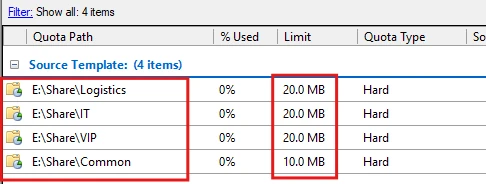
Each team folder can hold up to 20 MB, and the shared folder 10 MB. Once a folder is full, nothing more can be saved, so one team can't fill up the whole server.
FSRM · Quotas

File Server Resource Manager quota list: Logistics, IT and VIP at 20 MB hard quota, Common at 10 MB hard quota
The limits I set: 20 MB for the Logistics, IT and VIP team folders, and 10 MB for Common.
04

Risky files blocked, and tested

Programs and scripts can carry viruses, so the team folders block them. Common only takes text files and web pages (see the table above).

To check the rules, I tried saving different kinds of files into two folders: Logistics (the Sales team's folder) and Common (everyone's folder).
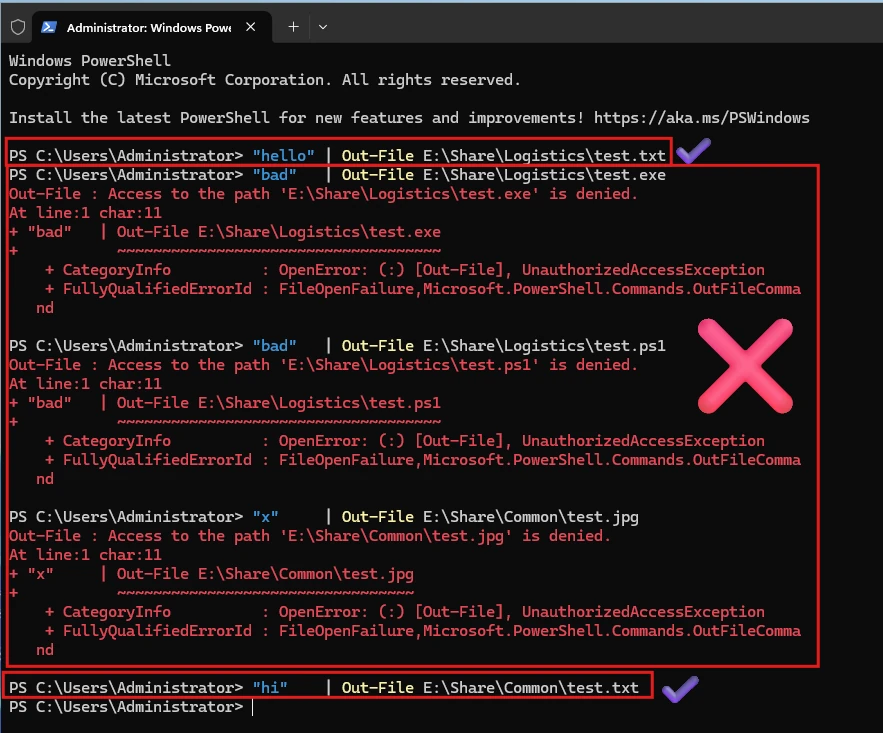
  • Saved: a text file (.txt) in Logistics and in Common
  • Refused: a program (.exe) and a script (.ps1) in Logistics
  • Refused: a picture (.jpg) in Common, which only takes text and web pages

FSRM · File screens

PowerShell window: saving test.txt to the Logistics share succeeds, saving test.exe and test.ps1 to Logistics and test.jpg to Common fails with 'Access to the path is denied', and saving test.txt to Common succeeds
My test in a command window. Each line tries to save one file: the .txt files saved (✓), and the .exe, .ps1 and .jpg files were refused with "Access denied" (✗).
05

A private folder for everyone

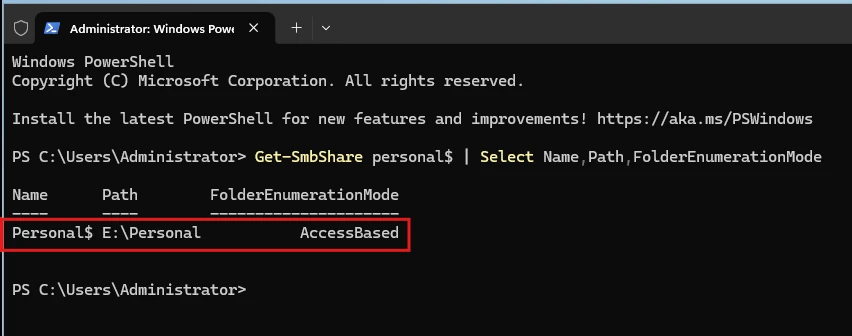
A script I wrote creates each person's private folder the first time they log in. The folders are hidden from everyone else, so people only ever see their own.
PowerShell · Access-Based Enumeration

PowerShell output of Get-SmbShare for personal$: path E:\Personal, FolderEnumerationMode AccessBased
The private folders' setting is "AccessBased", which hides other people's folders.
06

Secure company websites

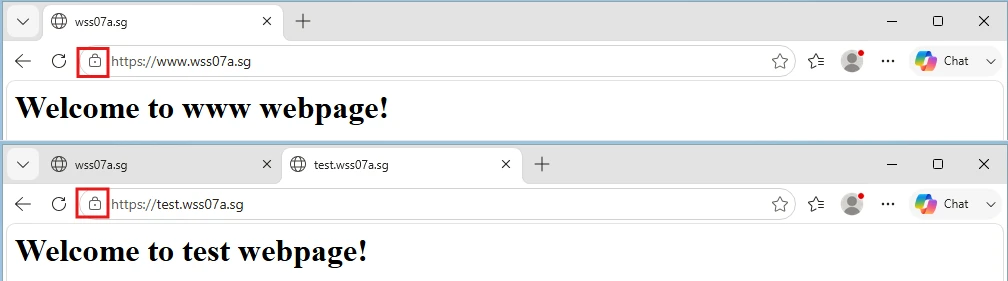
I set up two company websites. Both open with the padlock in the address bar and no security warning, because they use certificates from our own certificate authority.
IIS · AD CS · HTTPS

Two Edge windows: https://www.wss07a.sg showing 'Welcome to www webpage!' and https://test.wss07a.sg showing 'Welcome to test webpage!', both with the padlock icon and no certificate warning
Both websites open securely: see the padlock (boxed in red) next to each address.
07 · Extra feature

Files that sync between laptop and server

I set up Work Folders for the Remote team. It keeps a copy of each person's work files on both their laptop and the server, and syncs changes automatically, a bit like a company-run OneDrive.

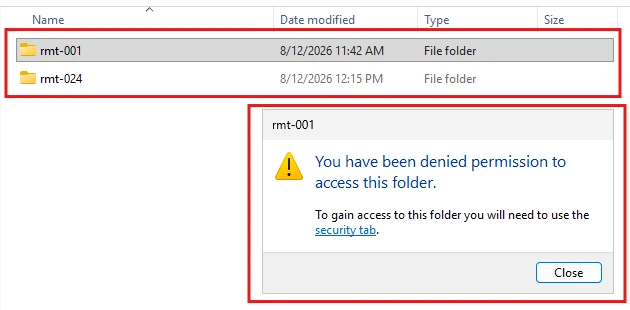
All four tests passed. Each person's files stay private: even the IT administrator can't open them.
Work Folders · HTTPS

Folder list on DC2 showing user folders rmt-001 and rmt-024, with a dialog: 'You have been denied permission to access this folder'
The administrator tries to open user rmt-001's synced folder and is denied, as intended.

Problems I fixed

Browsers didn't trust our websites

At first, browsers showed a security warning. Each website's certificate (its digital ID card) was missing a detail that browsers check.

Fix I requested new certificates with that detail included. Now browsers trust them.
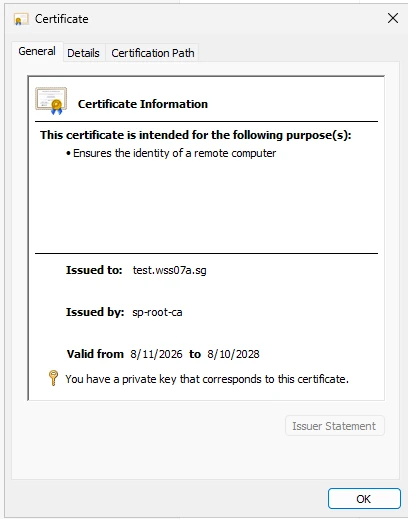
Windows certificate dialog: issued to test.wss07a.sg, issued by sp-root-ca, valid from 8/11/2026 to 8/10/2028, with a private key
The new certificate for test.wss07a.sg, issued by our own certificate authority (sp-root-ca).

A website that went round in circles

Sending visitors from the insecure address (http) to the secure one (https) also redirected the secure address, so the page never loaded.

Fix I made a tiny separate site whose only job is the redirect.

Two services, one door

The file sync and the websites both needed the same network "door" (port 443, used for secure web traffic).

Fix I set them up so the server can tell which service each visitor wants, and both work side by side.
What I learned

  • Keep the rules in one place. I set every access rule in one layer, so when something went wrong there was only one place to look.
  • Most website security problems are certificate problems. The certificate's details, and whether computers trust whoever issued it, both have to be right.
  • Test as a normal user. An admin account can open almost anything, so it hides mistakes.
Next project Multi-Site Company Network